Download YouTube Subtitles with Harku: Fast, Accurate, One-Click (SRT/VTT, Free)
Download YouTube Subtitles with Harku: Fast, Accurate, One-Click (SRT/VTT, Free)
If you need to download YouTube subtitles, Harku makes it simple: paste a URL, pick a language, and export clean captions or a full transcript. No installs, no signup, and support for 100+ languages. Whether you're repurposing content, adding accessibility, or taking research notes, this guide shows the easiest way to extract YouTube subtitles and export SRT/VTT/TXT—plus quick fixes for common issues.
Why download YouTube subtitles?
- Save time: Skip manual typing. Grab quotes, names, and time-stamped highlights in minutes.
- Accessibility & reach: Captions help more viewers follow your video—and boost watch time.
- Repurpose content: Turn videos into blog posts, show notes, and social snippets easily.
Real case: A 12-minute tutorial → transcript in <2 minutes → 5 social clips + 1 blog outline
How to download YouTube subtitles online (free, SRT/VTT)
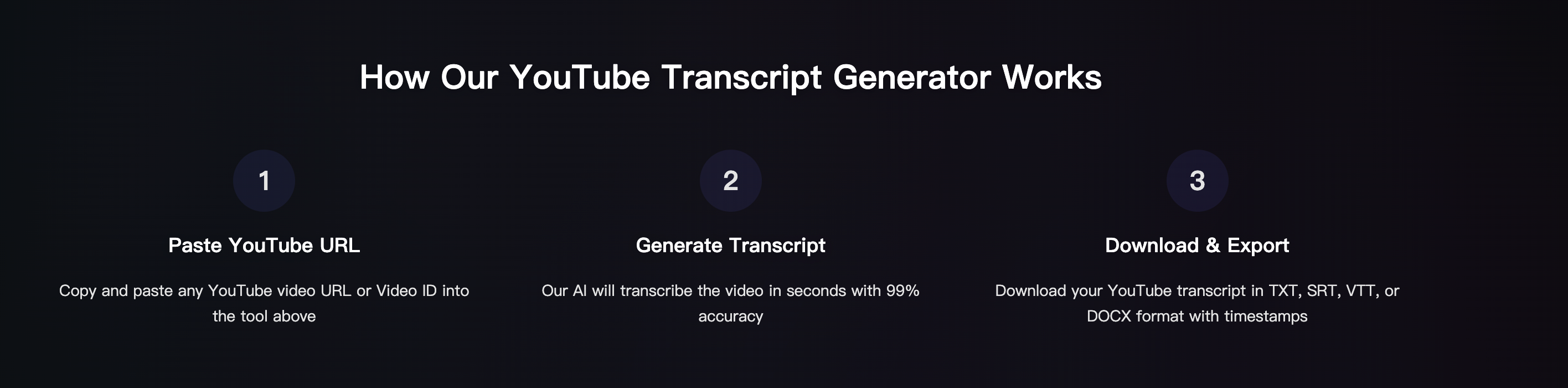
1) Paste the video link
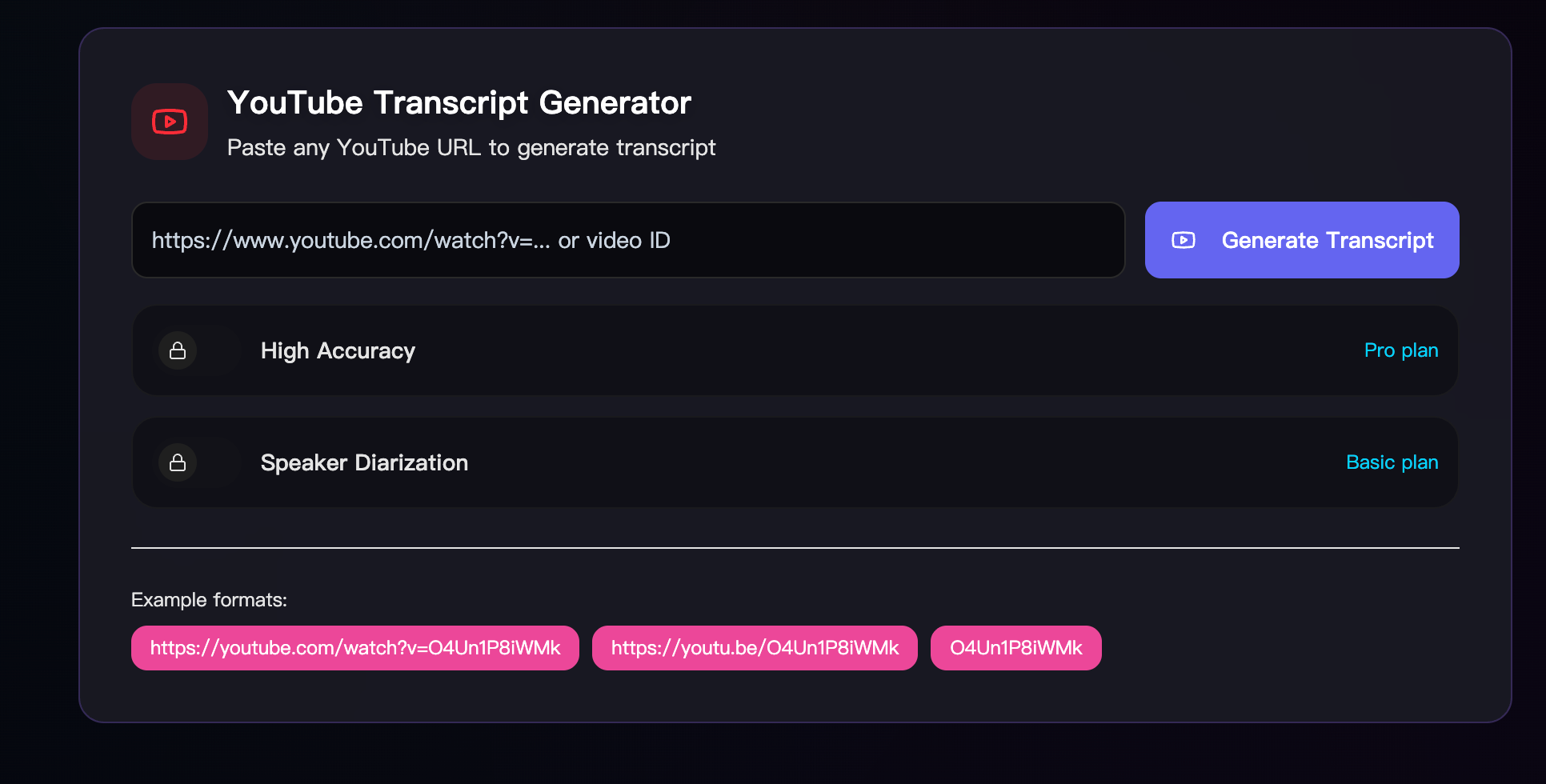
Open Harku, paste your YouTube URL, and click Transcribe. For multi-language videos, choose Auto-detect or pick a language manually for best accuracy.
2) Choose output: SRT, VTT, or TXT
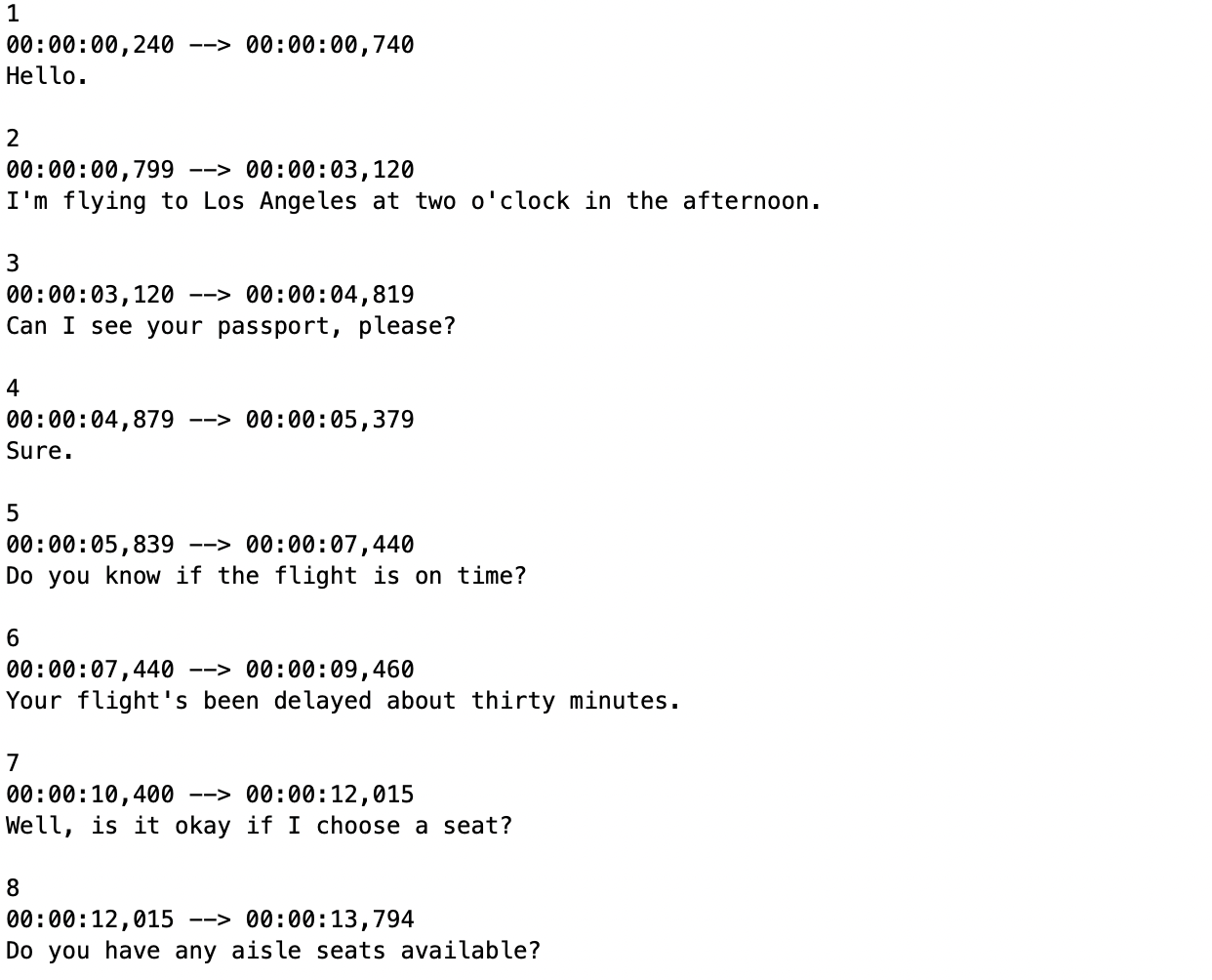
- SRT for most players/editors (simple and universal)
- VTT for web players with richer styling
- TXT if you just need a clean transcript
Tip: If you plan to edit captions later, start with SRT.
3) Export and review
Click Export to download YouTube subtitles. Open the file and skim for names, brands, and numbers—these are the most common typo spots. Keep each caption to two lines and break at natural pauses. You can also extract YouTube subtitles first, then edit timing and line breaks.
Try Harku free (no signup). When you need longer videos or priority queues, see Pricing.
YouTube to text for long videos (lectures, podcasts)
For long videos (50–90 minutes), you can still download YouTube subtitles smoothly:
- Stability first: If a public link is flaky, download the video, then process locally
- Chunk wisely: Split very long videos into 20–30-minute parts for easier editing and fewer timeouts
- Use timestamps: Enable timestamps so you can jump to key moments when editing
Real case: 90-minute lecture → split into 3 parts → faster review and corrections
On unstable networks, use tools that support resume uploads to avoid timeouts.
Improve accuracy (noise, accents, fast speakers)
Even YouTube audio varies a lot. Try these quick wins:
- Reduce noise: Avoid fans/AC and keep the mic steady
- Set levels: Normalize volume to avoid quiet/loud jumps
- Pick locale: Choose English-US vs English-UK (or the right language) for better recognition
- Handle fast speech: Shorten long sentences when editing captions to keep them readable
These simple tweaks help any YouTube to text workflow without extra tools.
Translate subtitles (English ↔ Chinese and more)
Once you download YouTube subtitles, translating is easy:
- Export SRT in the source language
- Create a translated copy (EN→ZH or ZH→EN)
- Keep timing, only replace text
Tip: For bilingual captions, use two-line format—line 1 English, line 2 Chinese.
Fix timing issues (desync, long lines, style)
- Desync by a bit? Shift captions ±0.5s and check again
- Lines too long? Two lines max; break on punctuation or natural pause
- Style mismatch? You can download YouTube subtitles as VTT if your web player needs styling
Use cases: research, learning, creators
- Research & quotes: Extract exact quotes with timestamps, then cite clearly
- Learning & notes: Save a transcript for review; highlight formulas, names, and steps
- Creators & editors: Clean captions improve retention; reuse text for descriptions and chapters
Real case: Creator repurposes one video into 1 newsletter + 3 short clips + 10 tweets
Online vs offline: which should you choose?
| Factor | Harku (online) | Offline tools |
|---|---|---|
| Setup | No install, runs in browser | Install needed, sometimes GPU |
| Speed | Fast start, server-side processing | Depends on your machine |
| Privacy | Encrypted in transit; delete after export | Full local control |
| Best for | Most users & teams | Strict IT/air-gapped use |
Recommendation: Start online for speed and ease. Move offline only if your policy forbids uploads.
Privacy & data retention (encrypted, delete after export)
- Encrypted in transit for uploads and downloads
- Data retention: Check how long files are stored; delete them after export if needed
- Team use: Confirm storage location and access policy
Learn more: Privacy · Changelog
FAQ: download YouTube subtitles
Is Harku free? Yes. Start free (no signup) with a small daily quota. Upgrade for longer videos and faster queues.
Do I need the original captions on YouTube? Not necessarily. Harku can download YouTube subtitles from auto-captions or generate a transcript if none exist.
Can I export TXT instead of SRT/VTT? Yes—export TXT for notes or editing; use SRT/VTT for players.
How do I keep captions readable? Two lines max, break at natural pauses, and keep each caption on screen long enough to read.
Can I translate subtitles? Yes. Export SRT in the source language, then translate and keep the original timing.
Does it work on mobile? Yes. Harku runs in the browser on iPhone/Android and on Mac/Windows.
What about names and brands? Review quickly after you download YouTube subtitles—proper nouns are the most common fix.
Where can I learn more? See Transcribe YouTube and Audio to Text.
Conclusion: paste a link, export clean captions
With Harku, you can download YouTube subtitles in minutes: paste a link, choose a language, and export SRT/VTT/TXT. It's fast, accurate, and friendly for teams.
Try Harku free (no signup) · See pricing · Audio to Text
Turn the YouTube video into editable text
Paste a video URL or video ID to generate a timestamped transcript and export TXT, SRT, or VTT.
Open the YouTube transcript generator