Transcribe Zoom Meeting with Harku: Fast, Accurate Minutes (SRT/TXT, Free)
Transcribe Zoom Meeting with Harku: Fast, Accurate Minutes (SRT/TXT, Free)
Need to transcribe Zoom meeting recordings into clean notes and captions? With Harku, upload your Zoom MP4/M4A, pick a language, and export a transcript or subtitles in minutes. No installs, no signup, and support for 100+ languages. This guide shows the simplest way to transcribe Zoom meeting files, export SRT/VTT/TXT, and add timestamps and speaker labels.
Why transcribe Zoom meeting?
- Searchable records. Find quotes, names, and timecodes in seconds instead of replaying the entire call.
- Accessibility & reach. Add captions for replays; improve engagement and retention.
- Repurpose content. Convert discussions into blog posts, docs, or help-center updates.
- Multi-language support. Transcribe meetings in 100+ languages with accurate speaker identification.
Real case: 45-minute sprint review → transcript in ~2 minutes → ready for review
Quick start: transcribe Zoom recording (online, free)
1) Get your Zoom file
- If you use Cloud Recording, open Zoom → Recordings → Download MP4/M4A.
- If you record locally, find the MP4 (video) or M4A (audio) file on your computer.
2) Upload and choose language
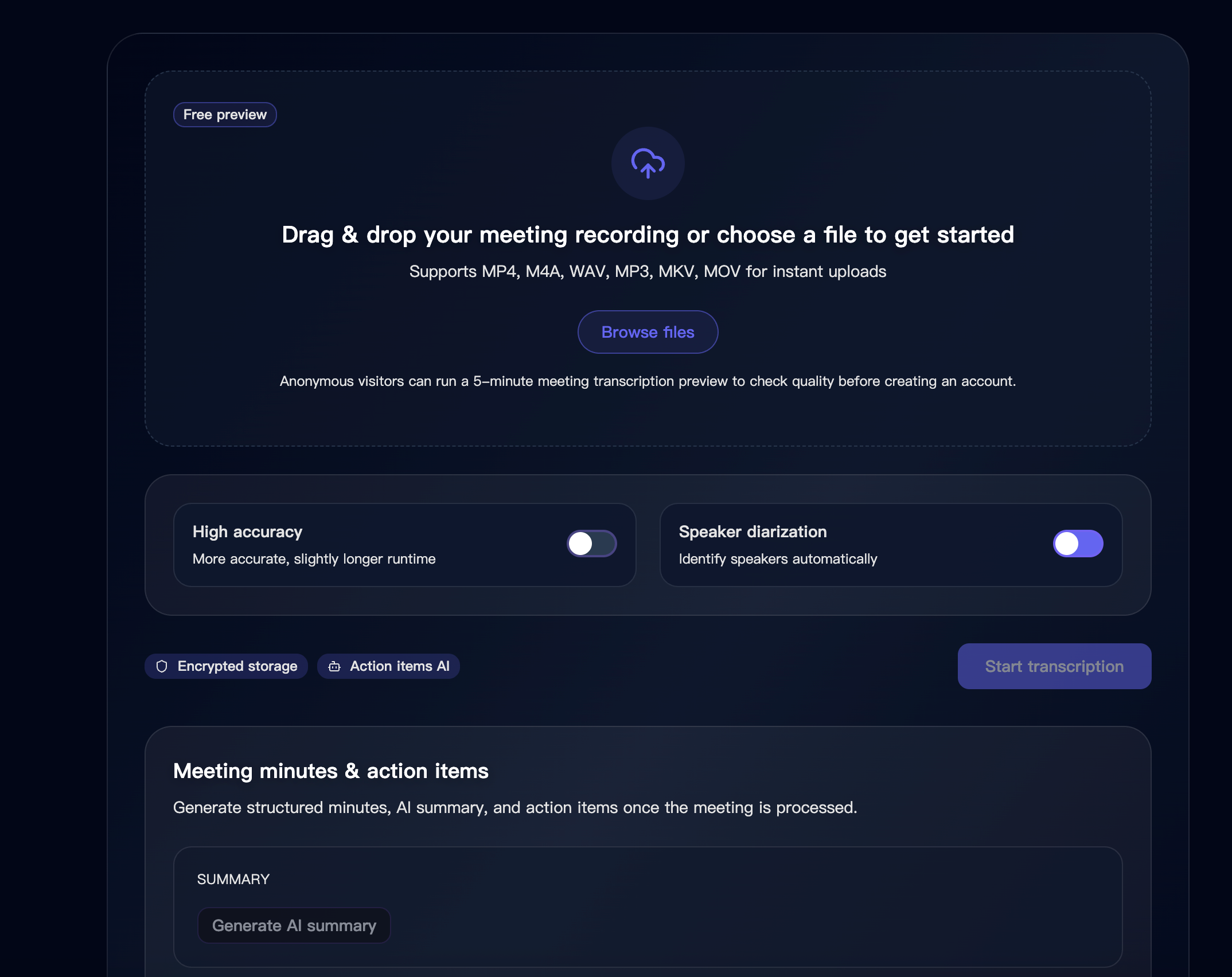
Open Harku, drag & drop the file, and select Auto-detect or a specific locale (e.g., English-US). For interviews and panels, enable timestamps and speaker labels to review faster.
3) Export and review
Click Export to transcribe Zoom meeting into TXT for notes or SRT/VTT for captions. Keep captions two lines max and break at natural pauses. Skim names, brands, and numbers—the most common areas to adjust.
How to transcribe Zoom meetings for free (to text)
You can start free with Harku—upload your Zoom MP4/M4A, pick a language, and export TXT for notes or SRT/VTT for captions. If you only need Zoom meeting to text, choose TXT; if you need captions, export SRT/VTT. The free tier covers short meetings; upgrade for longer files and faster queues.
Try Harku free (no signup). Need longer calls or faster queues? See Pricing.
Why use Harku to transcribe Zoom recordings?
- No software required — works in your browser, no installs needed.
- Multiple export formats — get TXT for notes, SRT/VTT for captions.
- Speaker diarization — automatically identify different speakers in your meeting.
- High accuracy mode — enable for better results on complex audio.
- Privacy-focused — encrypted uploads, delete files after export.
How to use your transcript effectively
Once you have your Zoom transcription, here are some ways to use it:
- Search and navigate — use timestamps to jump to specific moments.
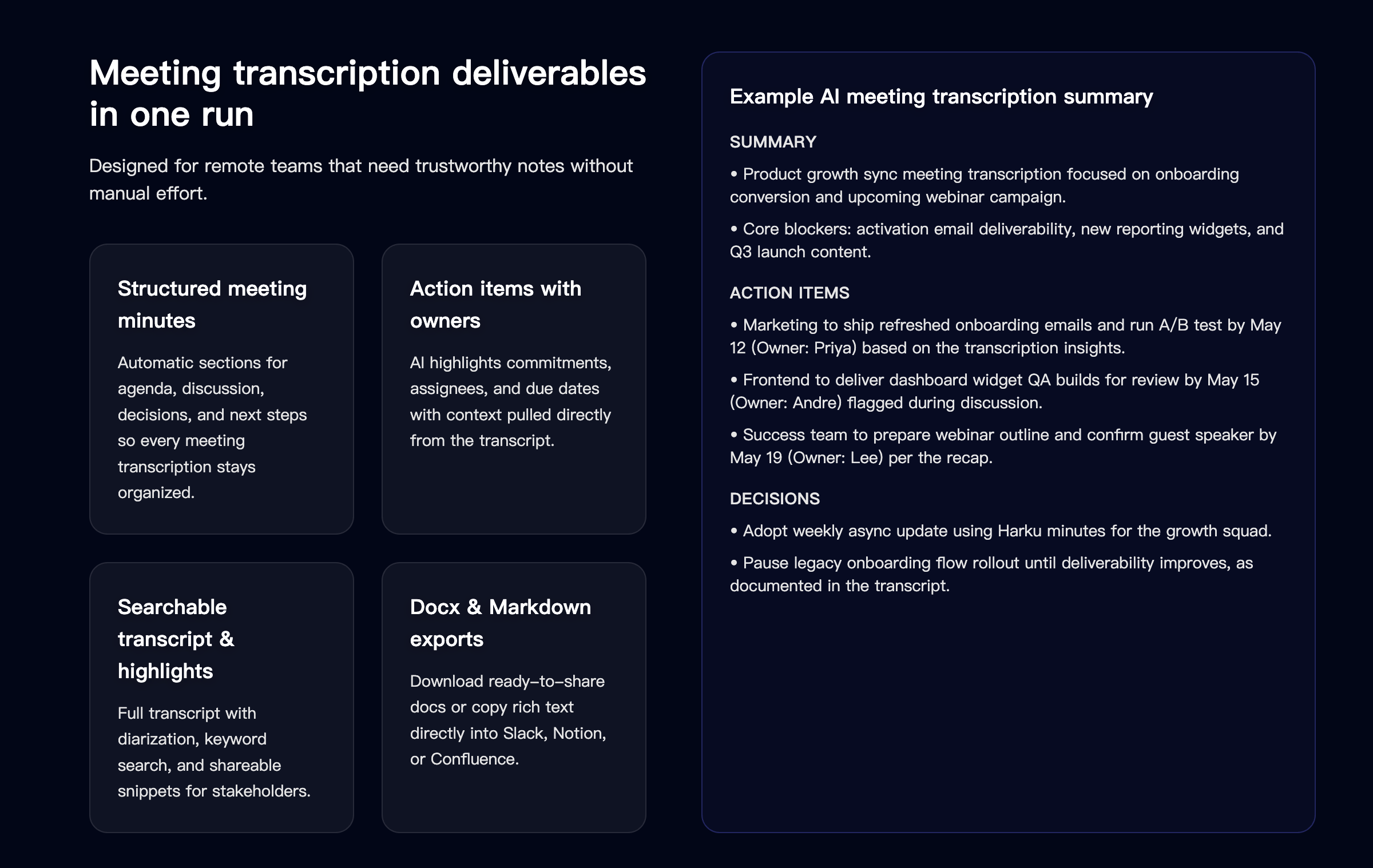
- Create summaries — copy key sections for meeting notes.
- Add captions to recordings — import SRT/VTT into video editors or players.
- Share with team — export TXT for easy sharing via email or chat.
- Archive for reference — keep transcripts as searchable records.
Tip: Enable speaker diarization for multi-speaker meetings to see who said what.
Improve accuracy before you transcribe Zoom meeting
Small tweaks = big gains:
- Reduce noise: Close doors, mute unused mics, avoid fans/AC.
- Mic distance: Keep voices steady and close to the mic.
- Levels: Normalize volume to avoid sudden loud/quiet jumps.
- Locale matters: Pick English-US vs English-UK (or the right language) for better spelling and names.
- Long calls: For 60–90 minute calls, process in 20–30 minute parts for easier edits and fewer timeouts.
Understanding timestamps and speaker labels
- Timestamps: Each segment shows start and end times, making it easy to locate specific moments in the recording.
- Speaker diarization: When enabled, Harku identifies different speakers (Speaker 1, Speaker 2, etc.) automatically.
- Two-line captions: For SRT/VTT exports, captions are formatted for readability with natural breaks.
Export options: SRT, VTT, or TXT — when to use what
- TXT — best for meeting notes and summaries.
- SRT — most common sidecar subtitle file; works almost everywhere.
- VTT — web-friendly; supports richer styling/metadata.
Tip: Start with TXT for minutes; export SRT/VTT if you share a replay.
Translate and share (EN ↔ ZH and more)
After you transcribe Zoom meeting audio, you can share with global teams:
- Export TXT/SRT in the source language.
- Create a translated copy (EN→ZH or ZH→EN).
- Keep timing; replace text only.
- For bilingual captions, use line 1 English, line 2 Chinese.
Fix common issues (sync, long lines, names)
- Slight desync? Shift the whole file by ±0.2–0.5s and recheck.
- Lines too long? Split to two lines; avoid over-stuffing one caption.
- Names/brands off? Correct once, then search-replace across the transcript.
- Network unstable? Use tools that support resume uploads for long files.
Use cases for Zoom transcription
- Team meetings: Keep searchable records of discussions and decisions.
- Interviews: Review candidate responses with speaker identification.
- Webinars: Add captions for accessibility and create text summaries.
- Training sessions: Make content searchable and quotable.
Online vs offline (which to choose?)
| Factor | Harku (online) | Offline tools |
|---|---|---|
| Setup | No install, runs in browser | Install needed, sometimes GPU |
| Speed | Fast start, server-side processing | Depends on your machine |
| Privacy | Encrypted in transit; delete after export | Full local control |
| Best for | Most users & teams | Strict IT/air-gapped use |
Recommendation: Start online for speed and ease. Go offline only if your policy forbids uploads.
Privacy & data basics
- Encrypted in transit for uploads and downloads.
- Data retention: Check how long files are stored; delete after export if needed.
- Team policy: Confirm storage location and access control.
Learn more: Privacy · Changelog
FAQ: transcribe Zoom meeting
How to transcribe Zoom meetings for free? Use Harku's free tier: upload your Zoom MP4/M4A → choose language → export TXT/SRT/VTT. Anonymous visitors can try a 5-minute preview.
What file formats does Harku support? Upload MP4, M4A, WAV, MP3, MKV, MOV files directly from your Zoom recordings folder.
Is Harku free? Yes—start free (no signup) with a daily quota. Upgrade for longer files and faster processing.
What's the difference between TXT, SRT, and VTT? TXT gives you plain text for notes. SRT/VTT include timestamps for video captions.
Can Harku identify different speakers? Yes—enable speaker diarization to automatically identify different speakers in your meeting.
What is high accuracy mode? High accuracy mode uses a more advanced model for better results on complex audio with accents, technical terms, or background noise.
How long does transcription take? Typically 1-2 minutes for a 30-minute recording. Longer files may take more time.
Does it work on mobile? Yes. Harku runs in the browser on iPhone/Android and on Mac/Windows.
Is my data secure? Uploads are encrypted in transit. You can delete files after exporting your transcript.
Conclusion: transcribe Zoom meeting in minutes
With Harku, you can transcribe Zoom meeting recordings quickly—upload, choose language, and export TXT/SRT/VTT. Clean minutes improve alignment, save time, and help teams ship faster.
Upload a Zoom recording · Try Harku free (no signup) · See pricing
Related guides
- Audio to Text — feature page
- Transcribe YouTube — topic guide
- Pricing — plans
- Privacy
- Changelog
Ready to Convert Your Videos?
Start converting MP4 to SRT with Harku - fast, accurate, and free to try.
Try Harku Free